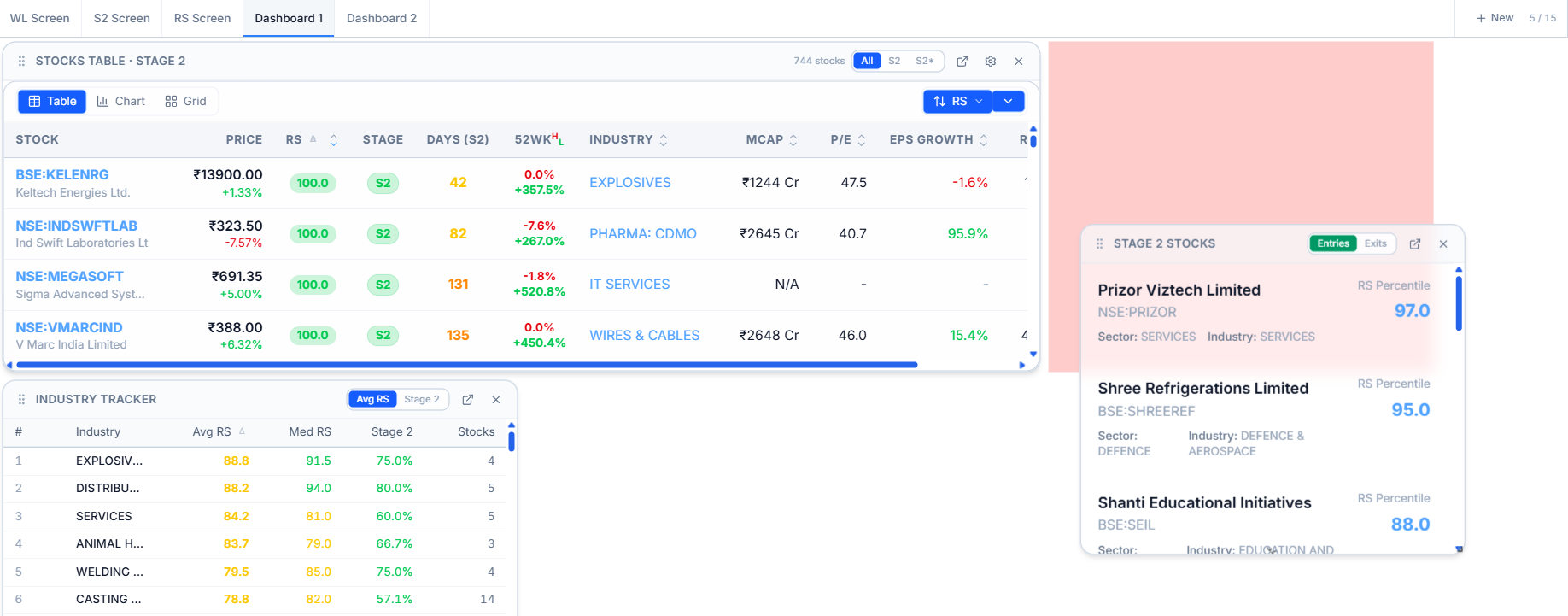
Add, Remove, and Rearrange Widgets
On-widget controls for adding, moving and removing widgets.
You add widgets from the widget library, remove ones you no longer need, resize the rest, and drag them into the order you want.
Screens and Their Widgets
Any screen you create yourself holds its own independent set of widgets. Adding, removing, resizing, and rearranging all work the same way on every screen.
Add a New Screen
Select + New next to your existing tabs to create a screen of your own. Give it a name and it opens empty, ready for you to add widgets to.

Add a Widget
- Open the screen you want to add a widget to.
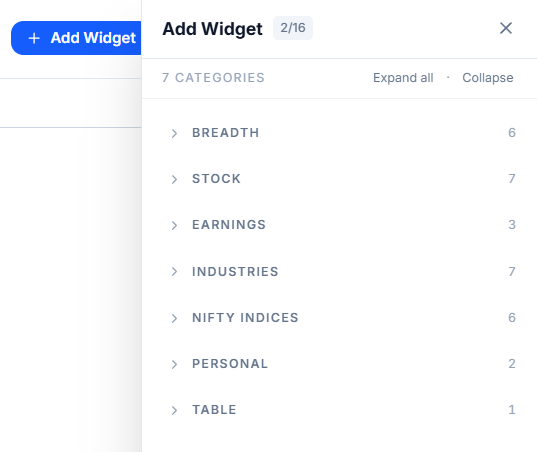
- Select Add Widget.
- Browse or search the widget library and select Add on the one you want.
- It appears on that screen immediately, with current data.
You can add up to 16 widgets in total in one screen.
Remove a Widget
Select the ✕ icon in the top corner of any widget to remove it. This only removes the widget from your Dashboard — it doesn't affect the underlying screen or any data, so you can add the same one back at any time.

Resize a Widget
Drag a widget's edge — not its header — to make it larger or smaller within the grid. Widgets snap into place, so you can fit two smaller widgets side by side, or give one widget more room to show additional detail.
Rearrange Widgets
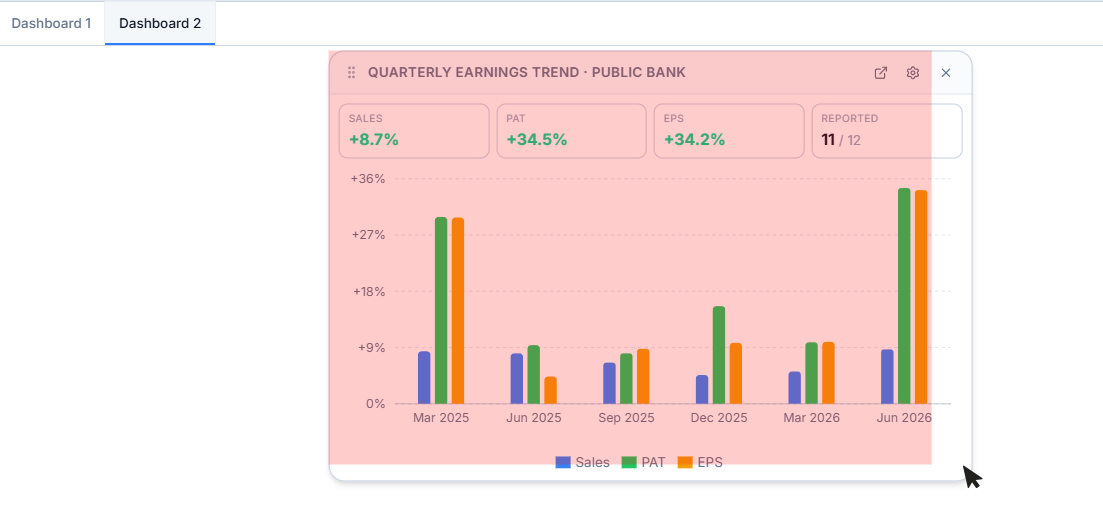
Select and hold a widget's header, then drag it to a new position on the page. Release to drop it there — the rest of your layout shifts automatically to make room, so you never end up with overlapping widgets.