Create Multiple Dashboards
Keep separate Dashboards, each with its own widgets and layout, for different routines.
You can create more than one Dashboard and switch between them whenever you want — each one keeps its own widgets and layout.

Why Create More Than One
We understand that you might have different needs at different times, one time you might want to check details of a particular stock, while at other times you might want to figure out the leading sector and industry.
Multiple Dashboards are useful when you have different routines, each dashboard unique to your routine.
Create a New Dashboard
Select the Dashboard name at the top of the page, then select New Dashboard. Give it a name and start adding widgets.
Switch Between Dashboards
Select the Dashboard name to open the switcher and choose a different Dashboard. WealthLab loads its widgets and layout instantly.
Rename or Delete a Dashboard
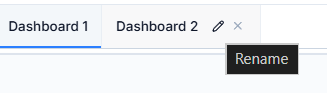
Double-click a Dashboard's name to rename it. To delete one, open the switcher and select Delete next to the Dashboard you want to remove.
Common Questions
Does the data differ between Dashboards?
No. All Dashboards draw from the same data — only the widgets you've added and how they're arranged differ.
Can I set a default Dashboard?
The Dashboard you were last on is the one that opens next time you visit.
Related Articles
Build Your Own Dashboard · Add, Remove, and Rearrange Widgets