Building and Running an Earnings Query
Stack Field, Quarter, Operator, and Value conditions, then run the query.
A query on this screen is really just a set of conditions, stacked together — and a stock only shows up in your results if it satisfies every single one.

Adding a Condition
Each condition has four parts you choose:
- Field — pick which number you want to check, out of everything WealthLab tracks for a stock. This is what lets you build a query around exactly what matters to you, instead of being stuck with a fixed set of filters someone else chose.
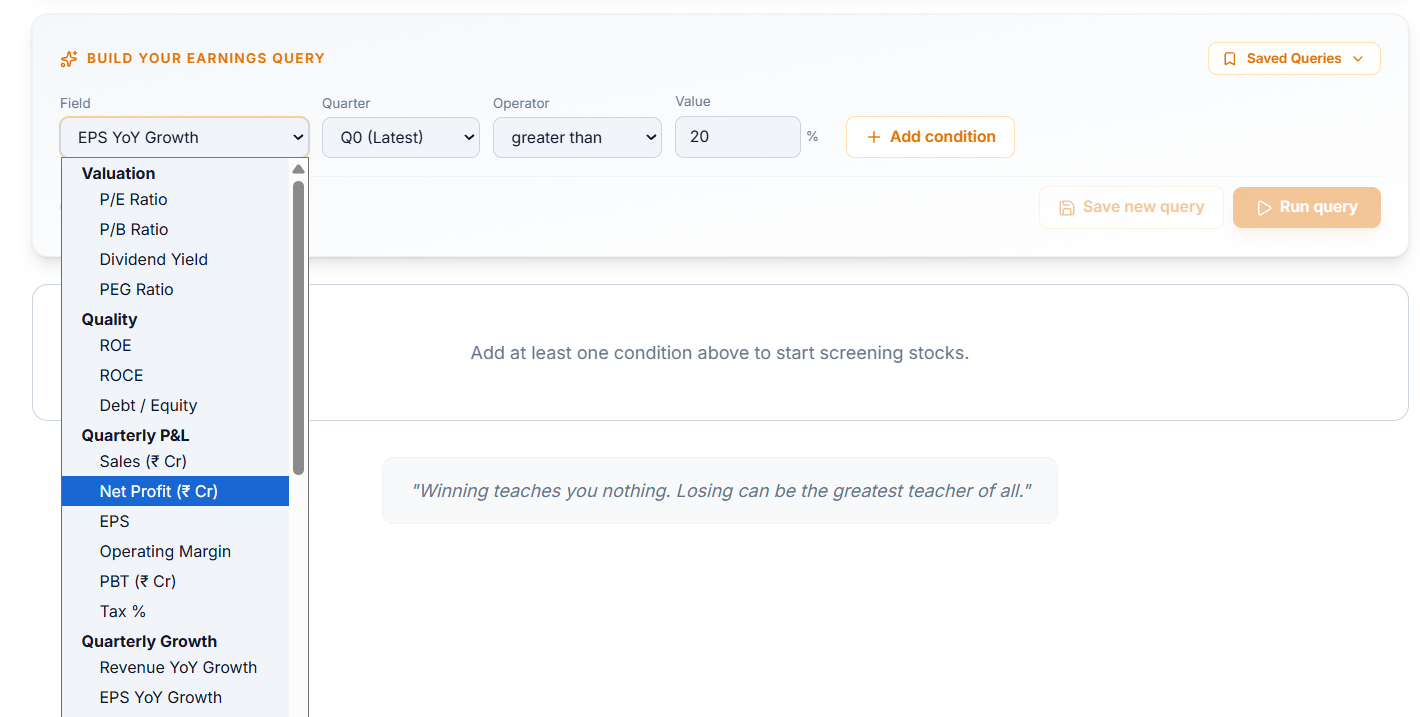
- Quarter — pick which reported quarter that Field should be checked against, the latest one or an earlier one. This matters because a stock's numbers change every quarter, so you need to be specific about which period you're actually screening.

- Operator — pick how the Field should compare to your Value, like greater than or less than. Without this, a Value on its own is just a number with no direction — the operator is what turns it into an actual condition.

- Value — set the number itself. This is the threshold your condition is actually checking against, and it's what makes the same Field mean something different depending on how strict or loose you set it.

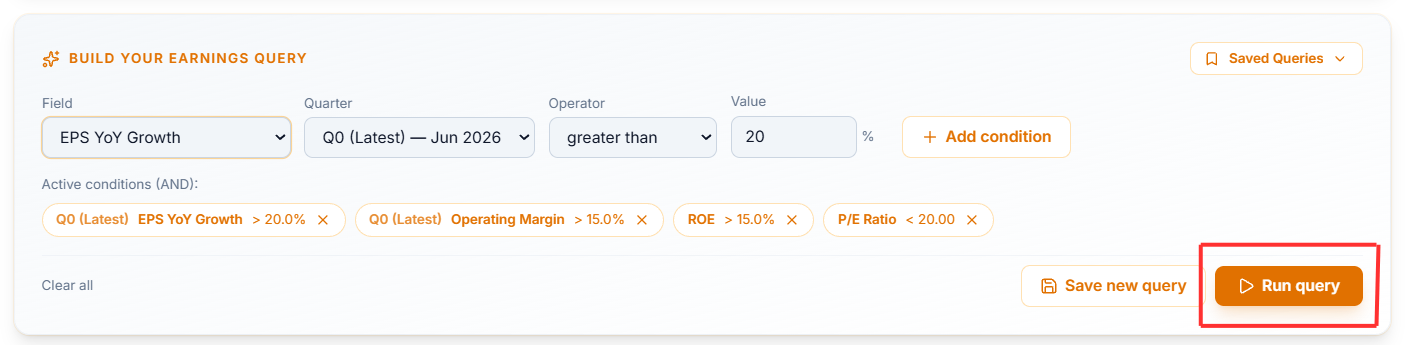
You're not limited to one condition. A query might combine several conditions at once — say, one on earnings growth, one on a margin metric, and one on valuation — and every condition you add narrows the results a little further, since a stock has to clear all of them, not just one.

Running the Query
Once your conditions are set, select Run Query. The results table below updates instantly, along with the summary stats and the two breakdown panels — everything reflects your query the moment you run it.
Reading the Summary Stats
Four numbers sit just below the query builder, and they're worth understanding properly:
- Matched — how many stocks satisfy every condition in your query.
- Of Universe — what share of the total tracked universe that Matched number represents.
- Declared — how many stocks have actually reported the quarter your query is checking against, out of the full universe. This matters because a query built around this quarter's numbers can only match stocks that have actually reported this quarter — everything else simply hasn't declared yet.
- Avg RS and % in Stage 2 — a quick read on how strong and how well-positioned your matched stocks are as a group, not just on the earnings side.

Saving a Query for Later
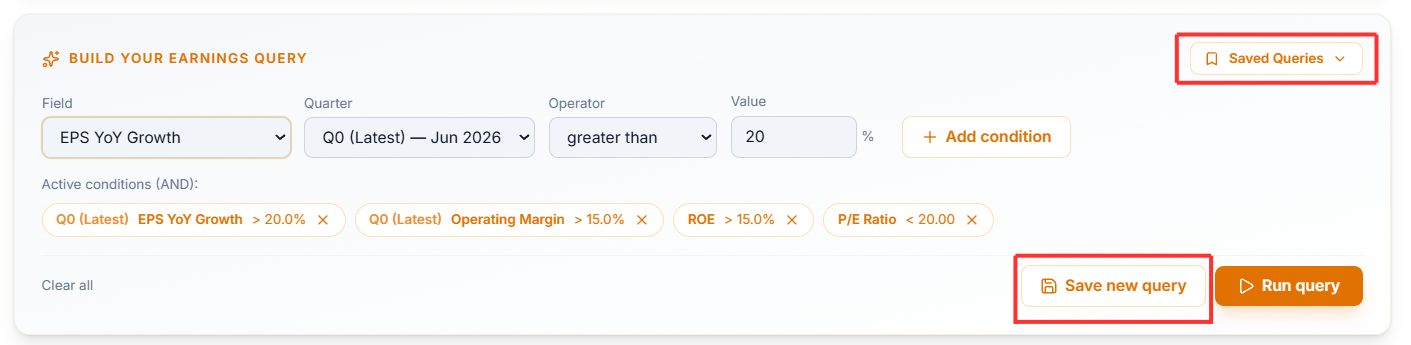
If you've built something you'll want to run again, select Save New Query and give it a name. Your saved queries live under the Saved Queries dropdown, so you can pull one up again without rebuilding it from scratch. Select Clear All any time you want to start over completely.
Common Questions
Why is my Matched number so much smaller than the total universe?
Because Matched only counts stocks that pass every condition you've added. The more conditions you stack, the fewer stocks will clear all of them — that's expected, not a sign something's wrong.
What happens if a stock hasn't reported the quarter I'm filtering on yet?
It simply won't appear in your results for that condition, since there's no data yet to check it against. The Declared stat tells you how many stocks are even eligible to match in the first place.
Should I use YoY or QoQ for a P/E-based condition?
Prefer YoY (year-over-year) — it eliminates seasonality effects that a QoQ comparison can introduce.