Notifications and Alerts Work
The bell icon showing everything WealthLab wants to tell you.
The bell icon in the top bar covers two related things: Notifications, WealthLab's own updates, and Alerts, the price and condition alerts you've set on individual stocks.
Notifications Panel
Tapping the bell opens a dropdown of recent notifications — things like member meetups, new videos, or feature updates — each with a timestamp for how long ago it was posted.
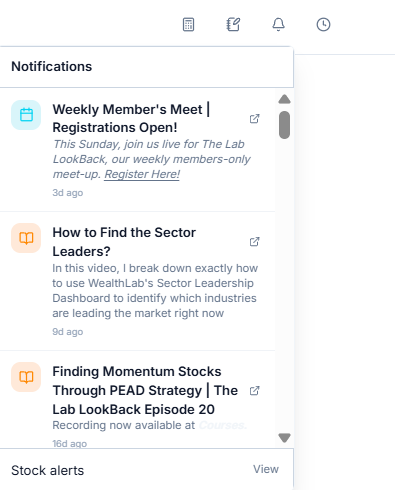
At the bottom of this panel is a Stock alerts row. Tap View next to it to go to your full alerts list.
My Alerts
My Alerts lists every price alert you've set, with a counter showing how many you're using out of your limit (for example, 1/50). Each alert shows the stock, the condition you set (for example, price above a certain level), its status, and the date it was set.
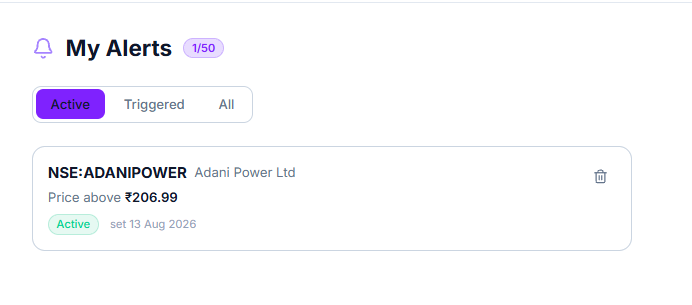
Use the Active, Triggered, and All tabs to filter the list by status.
Common Questions
Where do I create a new alert?
From a stock, industry, or index page, rather than from the alerts list itself — the Alert button there is where you set the condition.
What happens once an alert triggers?
It moves from Active to Triggered, and you'll see it reflected as a notification the next time you check the bell icon.
Where can I see triggered or past alerts?
In My Alerts, using the Triggered or All tab — reachable via the notification bell icon's "Stock alerts" row, then View.
How do I set an RS alert on an individual stock?
Alerts, including for RS, can be set directly on the stock's own page using the Alert button there — the same place you'd set a price or condition alert.