Time Machine
View how the market and its data looked at a past date.
What Is the Time Machine?
The Time Machine lets you view WealthLab's data as it stood on a past date, rather than live.
This allows you to backtest and know where the market stood in the past and how your strategy would have performed based on past data.
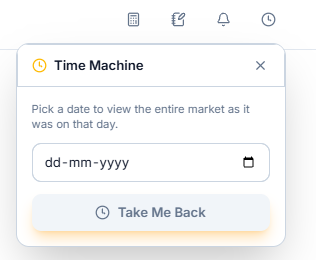
Using It
Tap the clock icon in the top bar, enter a date, and tap Take Me Back. WealthLab then shows the market — screens, stats, and charts — as they were on that date, instead of the current live data.
Knowing You're Viewing History
While the Time Machine is active, an orange banner stays fixed at the top of every screen: "Time Machine: Viewing market as of [date]". This is there so you don't mistake replayed data for live data as you move between screens. The clock icon in the top bar also highlights while this mode is active.

Returning to Live Data
Tap Back to Today on the right side of the banner to exit history and return every screen to current, live data.
Common Questions
How far back can I go?
This depends on how much historical data WealthLab holds for a given stock or screen — older or newly listed stocks may have less history available than the platform overall.
Does the banner follow me if I navigate to a different screen?
Yes. It stays fixed at the top of the app across every screen until you tap Back to Today, so you can browse multiple pages in the past without losing track of which mode you're in.
Related Articles
What Are Tools and Utilities? · Position Sizing Tool · My Notes